SweepScope draws two kinds of levels and marks each sweep of them with a triangle. Everything is decided on closed bars.
Equal high and low levels
When two or more swing highs (or swing lows) form at about the same price, SweepScope draws that price as a level. A level made of swing highs is labeled LQH with a number, one made of swing lows LQL.
- Swings join a level when they are within Equal High/Low Tolerance (Ticks) of it (default 3) and within Max Bars in Cluster bars of the level's first swing (default 100).
- A level with fewer swings than Minimum Swings in Cluster (default 2) is shown as developing, in yellow.
- With Show Swing Labels on, each swing point carries its level name and its count, for example LQL#8 (2).
Sweeps
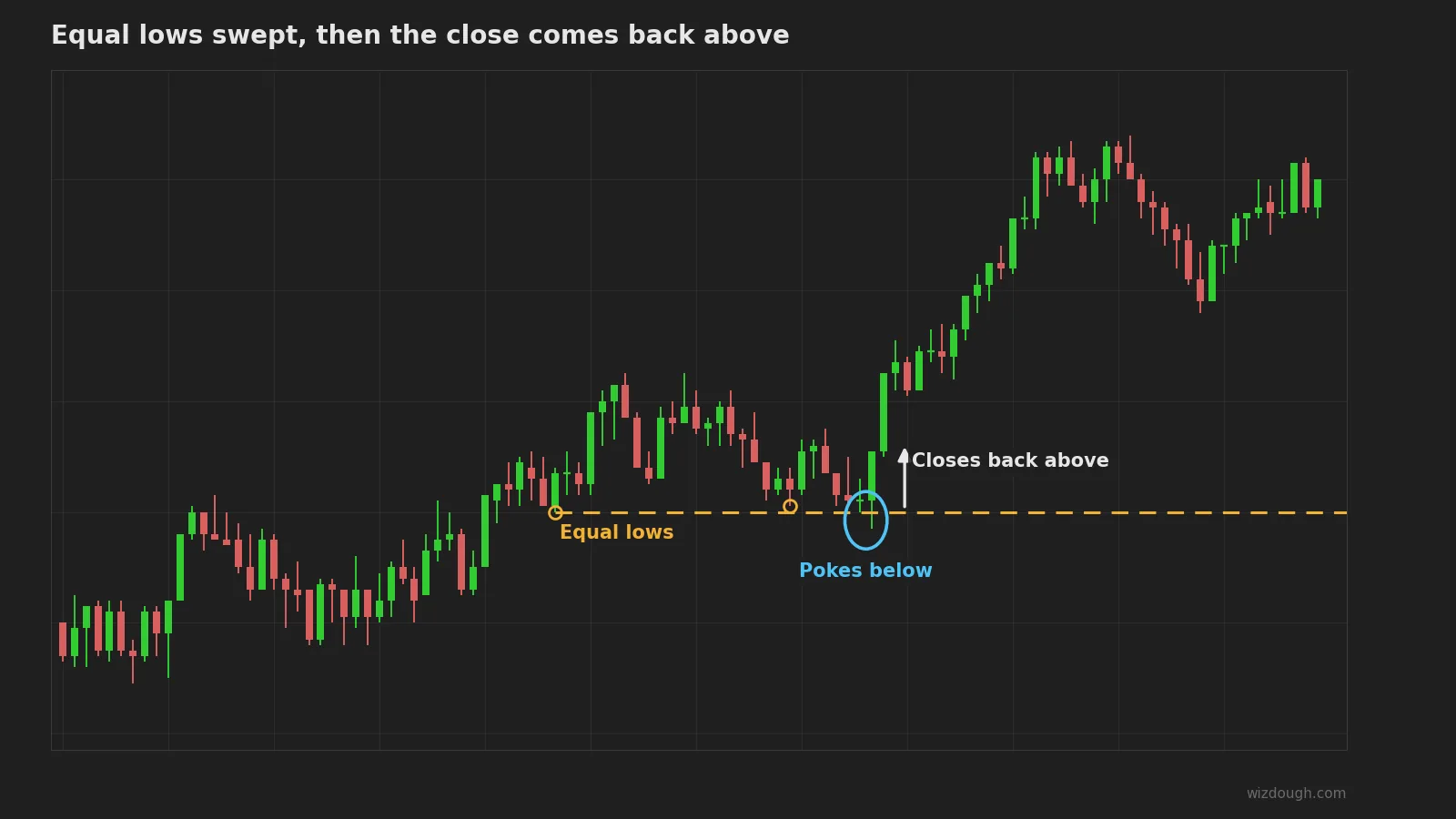
A sweep is a bar that reaches a level and then closes back on the other side of it by more than Minimum Sweep Reverse (Ticks). At the default of 2, the close has to come back at least 3 ticks.
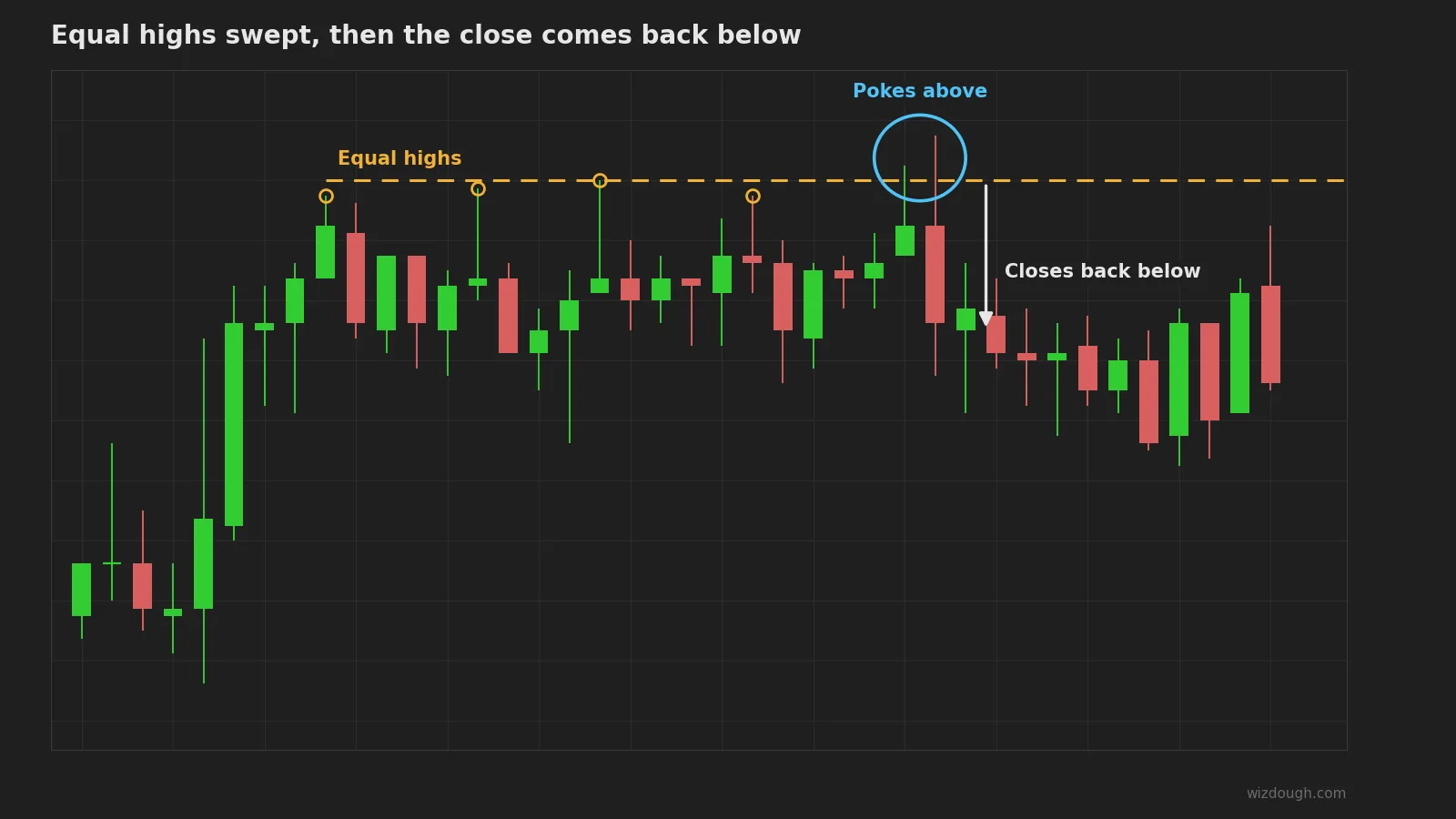
- A sweep of a high level is marked with a red triangle at the bar's high.
- A sweep of a low level is marked with a green triangle at the bar's low.
- If a bar goes through a level and does not close back by that much, the level has failed. It is no longer watched for a sweep, and it is hidden unless Show Failed Clusters is on.
Key levels
On intraday charts SweepScope also draws these lines. Times are US Eastern.
- Prior day high and low (PDH, PDL): the regular session, 09:30 to 16:00, of the last completed day that had one.
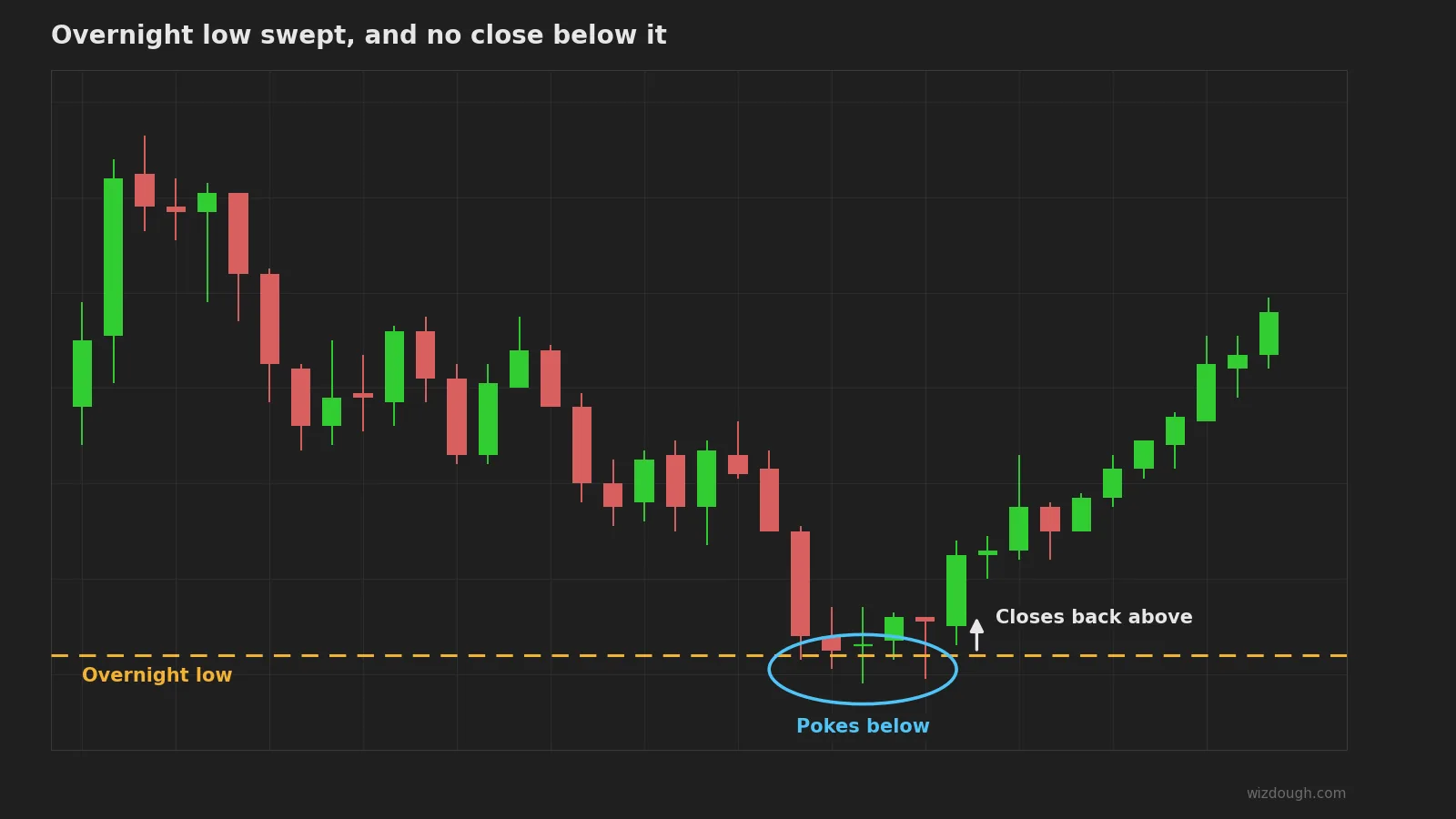
- Overnight high and low (ONH, ONL): from 18:00 to 09:30. They appear from the first regular session bar.
- Opening range high and low (ORH, ORL): the first 30 minutes of the regular session (Opening Range (Minutes)). They appear when the range ends.
A key level can be:
- swept: a bar trades through it and closes back inside by more than the Minimum Sweep Reverse;
- broken: a bar closes beyond it;
- reclaimed: after a break, a close back inside within Reclaim Bars bars (default 10). This is a slower sweep;
- accepted: it stays broken for Reclaim Bars.
A sweep and a reclaim get the same triangles as a sweep of an equal high or low. A line stops at the bar where it is swept, reclaimed or accepted, and otherwise ends with its trading day. A chart that loads in the middle of a session draws no level from the part of the session it did not see from the start.
Templates for ES
- ES 1 minute: the defaults, for a 1 minute ES chart.
- ES 5 minute: Swing Lookback Period 3, Equal High/Low Tolerance (Ticks) 4 and Max Bars in Cluster 40, for a 5 minute chart.
- Clean key levels: the key level lines and the sweep triangles, without the zones. Use it when the equal high and low zones make the chart too busy.
- SweepScope ES: a chart template with an ES 1 minute chart and SweepScope on the ES 1 minute settings.
See Getting Started for how to load them.
Alerts
Alerts are off by default. Turn on Sweep Alerts for an alert on each live sweep. Alert On Equal-Swing Levels and Alert On Key Levels pick which levels alert. Alerts fire on live bars, not on historical bars.
In strategies
SweepScope's two plots, LongSweepSignal and ShortSweepSignal, can be read by a NinjaScript strategy, another indicator or the Market Analyzer. Each one holds the bar's low (long) or high (short) on a sweep or reclaim bar and no value on other bars. See Settings.
Next: every setting.